FreeCAD is the application I chose to learn for 3D printing. It is open-source, runs on Linux, and uses parametric modelling, which makes it a good fit for designing enclosures and other parts to better integrate the controllers, connectors and wiring from my LED lighting installations into their surroundings.
For the install, I went with FreeCAD’s Linux AppImage rather than Ubuntu’s packaged version, which can lag behind the current release. I wanted the convenience of a normal desktop app while keeping updates as simple as replacing the AppImage.
Downloading FreeCAD
The current stable Linux AppImage is available from the official FreeCAD download page.
FreeCAD provides Linux AppImages for both x86_64 and aarch64.
The machine architecture can be checked with:
uname -muname reports information about the running system, while -m shows the machine architecture.
With the appropriate AppImage downloaded, the next part is to give it a permanent location and filename.
Storing the AppImage
An AppImage does not need to be installed into a particular system directory. I keep standalone applications in ~/Applications so they have a permanent location instead of remaining in Downloads.
The FreeCAD AppImage can be moved there and renamed at the same time:
mkdir -p ~/Applications
mv ~/Downloads/<FreeCAD-AppImage> ~/Applications/FreeCAD.AppImage
mkdir -p creates ~/Applications if it does not already exist.
mv moves the downloaded file into that directory and renames it to FreeCAD.AppImage. <FreeCAD-AppImage> represents the actual filename of the downloaded release.
FreeCAD now has a permanent path that can remain unchanged across future updates:
~/Applications/FreeCAD.AppImageMaking the AppImage executable
AppImages need executable permission before Linux can run them.
chmod +x ~/Applications/FreeCAD.AppImagechmod changes file permissions, while +x adds permission to execute the file as a program.
Running FreeCAD
The AppImage can now be started directly from the command line:
~/Applications/FreeCAD.AppImageIf FreeCAD opens normally, the standalone AppImage setup is already working.
The remaining setup integrates that same file with the desktop so FreeCAD can be opened like other regular installed applications.
Adding FreeCAD to the application launcher
Linux desktop environments use .desktop files to describe applications and how they are launched. For a user-specific application entry, tthe default user data location is ~/.local/share, which places application launchers in:
~/.local/share/applicationsThe directory can be created if necessary, and the FreeCAD launcher opened in Nano:
mkdir -p ~/.local/share/applications
nano ~/.local/share/applications/freecad.desktop
The launcher contains:
[Desktop Entry]
Type=Application
Name=FreeCAD
Exec=/home/username/Applications/FreeCAD.AppImage
Terminal=false
Categories=Graphics;Engineering;
The username in the Exec path needs to match the system account using the launcher.
Exec contains the full path to the AppImage that runs when FreeCAD is selected. Terminal=false indicates that the application does not need to open inside a terminal window.
In Nano, Ctrl+O writes the file, Enter confirms its filename, and Ctrl+X closes the editor.
FreeCAD should then appear when searching Ubuntu’s application menu.
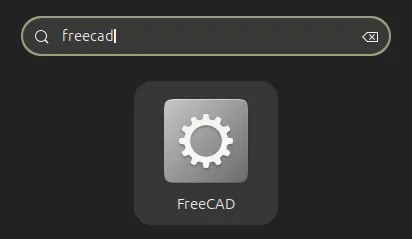
This .desktop mechanism can also be reused when another AppImage needs to behave like a normal desktop application.
Adding an icon
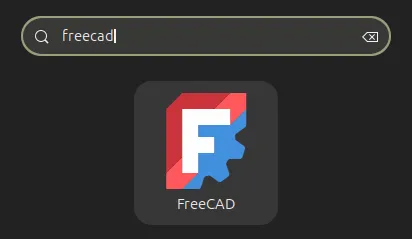
An icon is optional and only affects how FreeCAD appears in Ubuntu’s application menu and dock.
For this setup, I use a FreeCAD icon saved as freecad.svg. Any suitable icon image can be used instead, as long as the launcher points to its actual filename and location.
mkdir -p ~/.local/share/icons
mv ~/Downloads/freecad.svg ~/.local/share/icons/freecad.svg
Nano can be used again to add that icon path to the launcher:
nano ~/.local/share/applications/freecad.desktopThe complete entry now includes the icon path:
[Desktop Entry]
Type=Application
Name=FreeCAD
Exec=/home/username/Applications/FreeCAD.AppImage
Icon=/home/username/.local/share/icons/freecad.svg
Terminal=false
Categories=Graphics;Engineering;
As with Exec, the username needs to match the Ubuntu account, and the Icon path needs to match the actual location and filename of the image being used.
The application launcher now has an image to display for FreeCAD.
Updating FreeCAD
Updating FreeCAD in this setup means replacing the AppImage at the same permanent path.
To verify that the new release starts correctly before replacing the existing copy, a newly downloaded AppImage can first be made executable and run directly from Downloads:
chmod +x ~/Downloads/<new-FreeCAD-AppImage>
~/Downloads/<new-FreeCAD-AppImage>
If it runs correctly, the new AppImage can replace the one at the permanent path:
mv ~/Downloads/<new-FreeCAD-AppImage> ~/Applications/FreeCAD.AppImageBecause the launcher still points to the same path, nothing else in the setup needs to change.
Troubleshooting startup
When FreeCAD fails to open through the application launcher, running the AppImage directly from a terminal exposes output that may otherwise remain hidden:
~/Applications/FreeCAD.AppImageThat output provides the starting point for diagnosing the actual failure.
Compatibility problems can still exist depending on the application and Linux environment, so the reported error is the best starting point rather than applying changes preemptively.
Ubuntu package alternative
FreeCAD can also be installed from Ubuntu’s package repositories:
sudo apt install freecadThat gives Ubuntu responsibility for installing and updating the package instead of managing a standalone AppImage manually.
This setup uses FreeCAD’s upstream AppImage instead, which keeps the application self-contained and makes its location, launcher integration, and replacement process explicit.